Create an Application That Supports Microservice Transactions in a Shared ScalarDB Cluster Environment by Using LINQ
The JoinTransactionAsync method that this sample relies on is deprecated as of ScalarDB 3.19 and will be removed in a future release.
This tutorial describes how to create a sample e-commerce application that supports microservice transactions and follows the shared-cluster pattern for the ScalarDB Cluster .NET Client SDK and LINQ.
For details about the shared-cluster pattern, see ScalarDB Cluster Deployment Patterns for Microservices.
This section describes how to create a sample e-commerce application that follows the shared-cluster pattern by using the ScalarDB Cluster .NET Client SDK and LINQ.
Overview of the sample microservice application
The sample e-commerce application shows how users can order and pay for items by using a line of credit.
The sample application has two microservices called the Customer Service and the Order Service based on the database-per-service pattern:
- The Customer Service manages customer information, including line-of-credit information, credit limit, and credit total.
- The Order Service is responsible for order operations like placing an order and getting order histories.
Each service has gRPC endpoints. Clients call the endpoints, and the services call each endpoint as well.
The databases that you will be using in the sample application are Cassandra and MySQL. The Customer Service and the Order Service use Cassandra and MySQL, respectively, through ScalarDB Cluster.
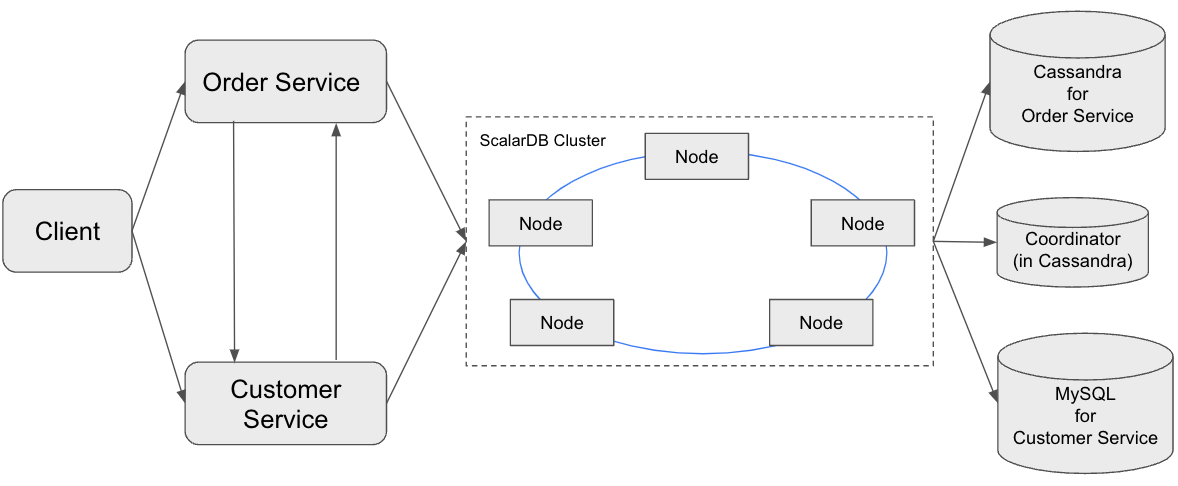
As shown in the diagram, ScalarDB Cluster has a small Coordinator database used for the Consensus Commit protocol. The database is service independent and exists for managing transaction metadata for Consensus Commit in a highly available manner.
In the sample application, for ease of setup and explanation, you co-locate the Coordinator database in the same Cassandra instance of the Order Service. Alternatively, you can manage the Coordinator database as a separate database.
Since the focus of the sample application is to demonstrate using ScalarDB Cluster, application-specific error handling, authentication processing, and similar functions are not included in the sample application.
Service endpoints
The endpoints defined in the services are as follows:
- Customer Service
GetCustomerInfoPaymentRepayment
- Order Service
PlaceOrderGetOrderGetOrders
What you can do in this sample application
The sample application supports the following types of transactions:
- Get customer information through the
GetCustomerInfoendpoint of the Customer Service. - Place an order by using a line of credit through the
PlaceOrderendpoint of the Order Service and thePaymentendpoint of the Customer Service.- Checks if the cost of the order is below the customer's credit limit.
- If the check passes, records the order history and updates the amount the customer has spent.
- Get order information by order ID through the
GetOrderendpoint of the Order Service and theGetCustomerInfoendpoint of the Customer Service. - Get order information by customer ID through the
GetOrdersendpoint of the Order Service and theGetCustomerInfoendpoint of the Customer Service. - Make a payment through the
Repaymentendpoint of the Customer Service.- Reduces the amount the customer has spent.
The GetCustomerInfo endpoint works as a participant service endpoint when receiving a transaction ID from the coordinator.
Prerequisites
- .NET SDK 8.0
- Docker 20.10 or later with Docker Compose V2 or later
.NET SDK 8.0 is the version used to create the sample application. For information about all supported versions, see Requirements
You need to have a license key (trial license or commercial license) to use ScalarDB Cluster. If you don't have a license key, you can use a ready-to-use trial license key by following How to Configure a Trial License Key. To obtain a commercial license, please contact us.
Set up ScalarDB Cluster
The following sections describe how to set up the sample application that supports microservice transactions with ScalarDB Cluster.
Clone the ScalarDB samples repository
Open Terminal, then clone the ScalarDB samples repository by running the following command:
git clone https://github.com/scalar-labs/scalardb-samples
Then, go to the directory that contains the sample application by running the following command:
cd scalardb-samples/scalardb-dotnet-samples/microservice-transactions-sample-with-shared-cluster-with-linq
Set the license key
Set the license key (trial license or commercial license) for the ScalarDB Cluster deployment to the configuration file scalardb-cluster-node.properties. For details, see How to Configure a Product License Key.
Start containers
The configuration file for ScalarDB Cluster is scalardb-cluster-node.properties. The Customer Service and the Order Service use a standard appsettings.json file for their configurations.
Cassandra and MySQL are already configured with the multi-storage setting, as shown in the configuration. For details about configuring the multi-storage transactions feature in ScalarDB, see How to configure ScalarDB to support multi-storage transactions.
For the sake of quickly setting up this sample application, you'll run ScalarDB Cluster in standalone mode. For details about running ScalarDB Cluster in standalone mode, see ScalarDB Cluster Standalone Mode.
Also, authentication is enabled to implement access control for each microservice. For details about authentication in ScalarDB, see Authenticate Users.
For the sake of quickly setting up this sample application, wire encryption is not enabled. However, we recommend enabling wire encryption in a production environment to secure the communication between the client and the ScalarDB Cluster nodes, and amongst the ScalarDB Cluster nodes themselves. For details about wire encryption, see Wire encryption.
To start the containers for the sample application, run the following command:
docker compose up -d --build
Starting the Docker container may take more than one minute depending on your development environment.
Apply the schema, create users, grant privileges, and load the initial data
The database schema (the method in which the data will be organized) for the sample application is defined as C# objects in Common project.
To apply the schema, create users, grant privileges, and load the initial data, run the following command:
dotnet run --project DataLoader/DataLoader.csproj --config scalardb-options.json
Schema details
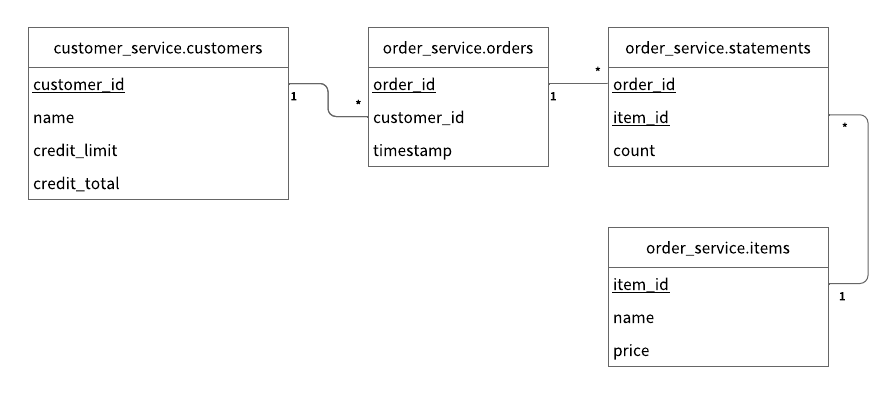
All the tables for the Customer Service are created in the customer_service namespace.
customer_service.customers: a table that manages customers' informationcredit_limit: the maximum amount of money a lender will allow each customer to spend when using a line of creditcredit_total: the amount of money that each customer has already spent by using their line of credit
Also, all the tables for the Order Service are created in the order_service namespace.
order_service.orders: a table that manages order informationorder_service.statements: a table that manages order statement informationorder_service.items: a table that manages information of items to be ordered
The Entity Relationship Diagram for the schema is as follows:
Initial data
The following records should be stored in the customer_service.customers table:
| customer_id | name | credit_limit | credit_total |
|---|---|---|---|
| 1 | Yamada Taro | 10000 | 0 |
| 2 | Yamada Hanako | 10000 | 0 |
| 3 | Suzuki Ichiro | 10000 | 0 |
And the following records should be stored in the order_service.items table:
| item_id | name | price |
|---|---|---|
| 1 | Apple | 1000 |
| 2 | Orange | 2000 |
| 3 | Grape | 2500 |
| 4 | Mango | 5000 |
| 5 | Melon | 3000 |
Users and privileges
A customer-service user with READ, CREATE, WRITE, and DELETE privileges for the customer_service namespace, and an order-service user with READ, CREATE, WRITE, and DELETE privileges for the order_service namespace are created.
Run the sample application
The following sections describe how to execute transactions and retrieve data in the sample e-commerce application.
Get customer information
Start with getting information about the customer whose ID is 1 by running the following command:
dotnet run --project Client/Client.csproj GetCustomerInfo 1
You should see the following output:
{ "id": 1, "name": "Yamada Taro", "creditLimit": 10000 }
At this time, creditTotal isn't shown, which means the current value of creditTotal is 0.
Place an order
Then, have customer ID 1 place an order for three apples and two oranges by running the following command:
The order format in this command is PlaceOrder <CUSTOMER_ID> <ITEM_ID>:<COUNT>,<ITEM_ID>:<COUNT>,....
dotnet run --project Client/Client.csproj PlaceOrder 1 1:3,2:2
You should see a similar output as below, with a different UUID for orderId, which confirms that the order was successful:
{ "orderId": "4b076074-797f-4fdb-b357-59531f0aec12" }
Check the order details
Check details about the order by running the following command, replacing <ORDER_ID_UUID> with the UUID for the orderId that was shown after running the previous command:
dotnet run --project Client/Client.csproj GetOrder <ORDER_ID_UUID>
You should see a similar output as below, with a different UUID for orderId and a different value for timestamp:
{ "order": { "orderId": "4b076074-797f-4fdb-b357-59531f0aec12", "timestamp": "63825948620680", "customerId": 1, "customerName": "Yamada Taro", "statement": [ { "itemId": 1, "itemName": "Apple", "price": 1000, "count": 3, "total": 3000 }, { "itemId": 2, "itemName": "Orange", "price": 2000, "count": 2, "total": 4000 } ], "total": 7000 } }
Place another order
Place an order for one melon that uses the remaining amount in creditTotal for customer ID 1 by running the following command:
dotnet run --project Client/Client.csproj PlaceOrder 1 5:1
You should see a similar output as below, with a different UUID for orderId, which confirms that the order was successful:
{ "orderId": "6c7750c8-10ad-4f02-aa3c-e30621d95151" }
Check the order history
Get the history of all orders for customer ID 1 by running the following command:
dotnet run --project Client/Client.csproj GetOrders 1
You should see a similar output as below, with a different UUID for orderId and a different value for timestamp, which shows the history of all orders for customer ID 1:
{ "order": [ { "orderId": "4b076074-797f-4fdb-b357-59531f0aec12", "timestamp": "63825948620680", "customerId": 1, "customerName": "Yamada Taro", "statement": [ { "itemId": 1, "itemName": "Apple", "price": 1000, "count": 3, "total": 3000 }, { "itemId": 2, "itemName": "Orange", "price": 2000, "count": 2, "total": 4000 } ], "total": 7000 }, { "orderId": "6c7750c8-10ad-4f02-aa3c-e30621d95151", "timestamp": "63825948672045", "customerId": 1, "customerName": "Yamada Taro", "statement": [ { "itemId": 5, "itemName": "Melon", "price": 3000, "count": 1, "total": 3000 } ], "total": 3000 } ] }
Check the credit total
Get the credit total for customer ID 1 by running the following command:
dotnet run --project Client/Client.csproj GetCustomerInfo 1
You should see the following output, which shows that customer ID 1 has reached their creditLimit amount in creditTotal and cannot place anymore orders:
{ "id": 1, "name": "Yamada Taro", "creditLimit": 10000, "creditTotal": 10000 }
Try to place an order for one grape and one mango by running the following command:
dotnet run --project Client/Client.csproj PlaceOrder 1 3:1,4:1
You should see the following output, which shows that the order failed because the creditTotal amount would exceed the creditLimit amount:
Unhandled exception: Grpc.Core.RpcException: Status(StatusCode="FailedPrecondition", Detail="Credit limit exceeded (17500 > 10000)")
   at MicroserviceTransactionsSample.Client.Commands.PlaceOrderCommand.placeOrder(Int32 customerId, Dictionary`2 orders, OrderServiceClient client)
...
Make a payment
To continue making orders, customer ID 1 must make a payment to reduce the creditTotal amount.
Make a payment by running the following command:
dotnet run --project Client/Client.csproj Repayment 1 8000
Then, check the creditTotal amount for customer ID 1 by running the following command:
dotnet run --project Client/Client.csproj GetCustomerInfo 1
You should see the following output, which shows that a payment was applied to customer ID 1, reducing the creditTotal amount:
{ "id": 1, "name": "Yamada Taro", "creditLimit": 10000, "creditTotal": 2000 }
Now that customer ID 1 has made a payment, place an order for one grape and one mango by running the following command:
dotnet run --project Client/Client.csproj PlaceOrder 1 3:1,4:1
You should see a similar output as below, with a different UUID for orderId, which confirms that the order was successful:
{ "orderId": "5e26a530-0b54-4205-bb74-a06675570934" }
Stop the sample application
To stop the sample application, you need to stop the Docker containers that are running Cassandra, MySQL, ScalarDB Cluster, and the microservices. To stop the Docker containers, run the following command:
docker compose down -v