LINQ を使用して共有 ScalarDB Cluster 環境でマイクロサービストランザクションをサポートするアプリケーションを作成する
このページは英語版のページが機械翻訳されたものです。英語版との間に矛盾または不一致がある場合は、英語版を正としてください。
このサンプルが依存している JoinTransactionAsync メソッドは ScalarDB 3.19 以降非推奨となり、将来のリリースで削除される予定です。
このチュートリアルでは、マイクロサービストランザクションをサポートし、ScalarDB Cluster .NET Client SDK と LINQ の共有クラスターパターンに従うサンプル電子商取引アプリケーションの作成方法について説明します。
共有クラスターパターンの詳細については、マイクロサービスにおける ScalarDB Cluster のデプロイパターンを参照してください。
このセクションでは、ScalarDB Cluster .NET Client SDK と LINQ を使用して、共有クラスターパターンに従うサンプル電子商取引アプリケーションの作成方法について説明します。
サンプルマイクロサービスアプリケーションの概要
このサンプル電子商取引アプリケーションは、ユーザーがクレジットラインを使用して商品を注文し、支払いを行う方法を示しています。
このサンプルアプリケーションには、database-per-service パターンに基づいて、 Customer Service と Order Service という2つのマイクロサービスがあります:
- Customer Service は、クレジットライン情報、クレジット限度額、クレジット合計を含む顧客情報を管理します。
- Order Service は、注文の配置や注文履歴の取得などの注文操作を担当します。
各サービスには gRPC エンドポイントがあります。クライアントはエンドポイントを呼び出し、サービスも各エンドポイントを呼び出します。
サンプルアプリケーションで使用するデータベースは、Cassandra と MySQL です。Customer Service と Order Service は、それぞれ ScalarDB Cluster を通じて Cassandra と MySQL を使用します。
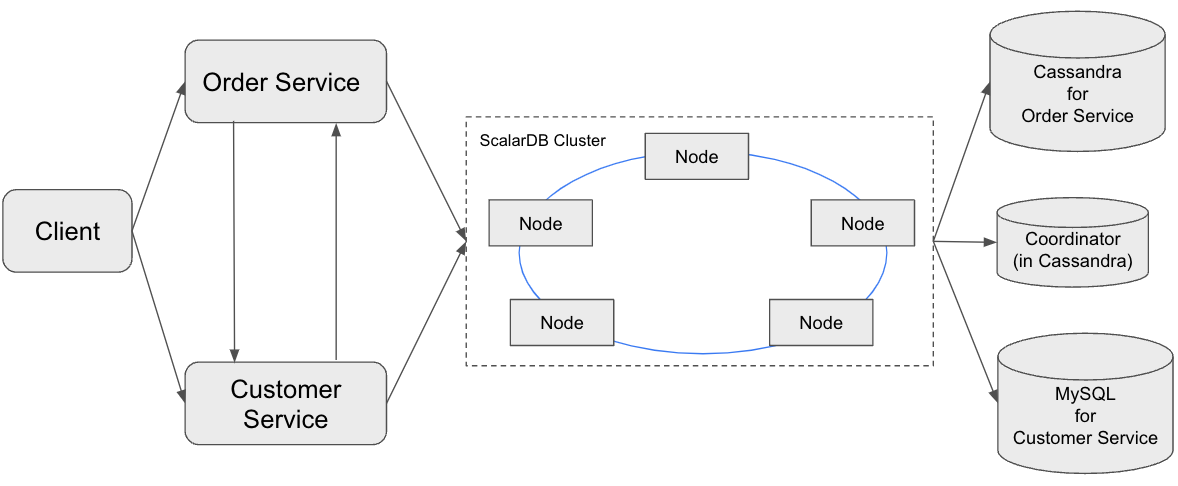
図に示すように、ScalarDB Cluster には、Consensus Commit プロトコルに使用される小さな Coordinator データベースがあります。このデータベースはサービスに依存せず、Consensus Commit のトランザクションメタデータを可用性の高い方法で管理するために存在します。
サンプルアプリケーションでは、セットアップと説明を簡単にするために、Coordinator データベースを Order Service の Cassandra インスタンスと同じ場所に配置しています。または、Coordinator データベースを別のデータベースとして管理することもできます。
サンプルアプリケーションの焦点は ScalarDB Cluster の使用方法を実演することなので、アプリケーション固有のエラーハンドリング、認証処理、および同様の機能はサンプルアプリケーションには含まれていません。
サービスエンドポイント
サービスで定義されているエンドポイントは以下の通りです:
- Customer Service
GetCustomerInfoPaymentRepayment
- Order Service
PlaceOrderGetOrderGetOrders
このサンプルアプリケーションでできること
サンプルアプリケーションは以下のタイプのトランザクションをサポートしています:
- Customer Service の
GetCustomerInfoエンドポイントを通じて顧客情報を取得する。 - Order Service の
PlaceOrderエンドポイントと Customer Service のPaymentエンドポイントを使用してクレジットラインで注文を配置する。- 注文のコストが顧客のクレジット限度額を下回っているかを確認する。
- チェックが通過した場合、注文履歴を記録し、顧客が使った金額を更新する。
- Order Service の
GetOrderエンドポイントと Customer Service のGetCustomerInfoエンドポイントを通じて注文 ID で注文情報を取得する。 - Order Service の
GetOrdersエンドポイントと Customer Service のGetCustomerInfoエンドポイントを通じて顧客 ID で注文情報を取得する。 - Customer Service の
Repaymentエンドポイントを通じて支払いを行う。- 顧客が使った金額を減らす。
GetCustomerInfo エンドポイントは、コーディネーターからトランザクション ID を受信するときに、参加者サービスエンドポイントとして動作します。
前提条件
- .NET SDK 8.0
- Docker Compose V2 以降を備えた Docker 20.10 以降
.NET SDK 8.0 は、サンプルアプリケーションの作成に使用されたバージョンです。サポートされているすべてのバージョンについては、要件を参照してください。
ScalarDB Cluster を使用するには、ライセンスキー (試用ライセンスまたは商用ライセンス) が必要です。ライセンスキーをお持ちでない場合は、試用ライセンスキーの設定方法に従ってすぐに使える試用ライセンスキーをご利用いただけます。商用ライセンスを取得するには、お問い合わせください。
ScalarDB Cluster のセットアップ
以下のセクションでは、ScalarDB Cluster でマイクロサービストランザクションをサポートするサンプルアプリケーションのセットアップ方法について説明します。
ScalarDB サンプルリポジトリのクローン
ターミナルを開き、以下のコマンドを実行して ScalarDB サンプルリポジトリをクローンします:
git clone https://github.com/scalar-labs/scalardb-samples
次に、以下のコマンドを実行してサンプルアプリケーションが含まれるディレクトリに移動します:
cd scalardb-samples/scalardb-dotnet-samples/microservice-transactions-sample-with-shared-cluster-with-linq
ライセンスキーの設定
ScalarDB Cluster 配置のライセンスキー(試用ライセンスまたは商用ライセンス)を設定ファイル scalardb-cluster-node.properties に設定します。詳細については、ライセンスキーの設定方法を参照してください。
コンテナの開始
ScalarDB Cluster の設定ファイルは scalardb-cluster-node.properties です。Customer Service と Order Service は、設定に標準の appsettings.json ファイルを使用します。
Cassandra と MySQL は、設定に示されているように、マルチストレージ設定で既に構成されています。ScalarDB でマルチストレージトランザクション機能を構成する方法の詳細については、マルチストレージトランザクションをサポートするように ScalarDB を設定する方法を参照してください。
このサンプルアプリケーションを素早くセットアップするため、ScalarDB Cluster をスタンドアロンモードで実行します。ScalarDB Cluster をスタンドアロンモードで実行する詳細については、ScalarDB Cluster スタンドアロンモードを参照してください。
また、各マイクロサービスのアクセス制御を実装するために認証が有効になっています。ScalarDB での認証の詳細については、ユーザーの認証と認可を参照してください。
このサンプルアプリケーションを素早くセットアップするため、ワイヤー暗号化は有効になっていません。ただし、クライアントと ScalarDB Cluster ノード間の通信、および ScalarDB Cluster ノード間の通信を保護するために、本番環境ではワイヤー暗号化を有効にすることをお勧めします。ワイヤー暗号化の詳細については、ワイヤ通信の暗号化を参照してください。
サンプルアプリケーションのコンテナを開始するには、以下のコマンドを実行します:
docker compose up -d --build
開発環境によっては、Docker コンテナの開始に1分以上かかる場合があります。
スキーマの適用、ユーザーの作成、権限の付与、初期データの読み込み
サンプルアプリケーションのデータベーススキーマ(データの整理方法)は、Common プロジェクトで C# オブジェクトとして定義されています。
スキーマを適用し、ユーザーを作成し、権限を付与し、初期データを読み込むには、以下のコマンドを実行します:
dotnet run --project DataLoader/DataLoader.csproj --config scalardb-options.json
スキーマの詳細
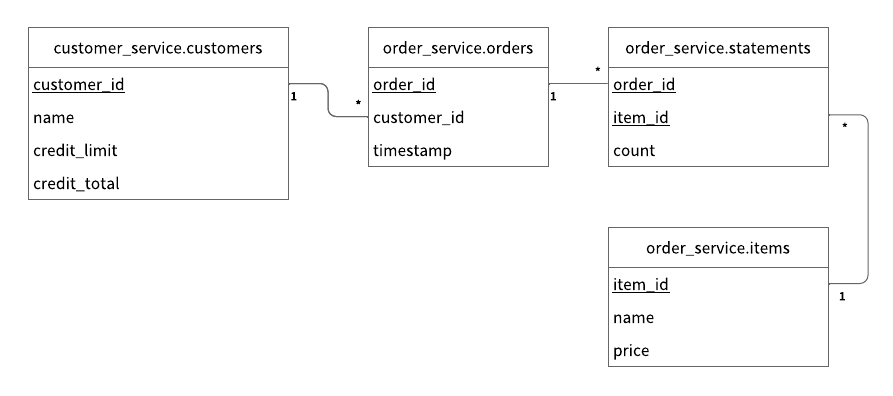
Customer Service のすべてのテーブルは、customer_service ネームスペースに作成されます。
customer_service.customers: 顧客情報を管理するテーブルcredit_limit: 貸し手が各顧客がクレジットラインを使用するときに費やすことを許可する最大金額credit_total: 各顧客がクレジットラインを使用してすでに費やした金額
また、Order Service のすべてのテーブルは、order_service ネームスペースに作成されます。
order_service.orders: 注文情報を管理するテーブルorder_service.statements: 注文明細情報を管理するテーブルorder_service.items: 注文する商品の情報を管理するテーブル
スキーマの Entity Relationship Diagram は以下の通りです:
初期データ
以下のレコードが customer_service.customers テーブルに格納されます:
| customer_id | name | credit_limit | credit_total |
|---|---|---|---|
| 1 | Yamada Taro | 10000 | 0 |
| 2 | Yamada Hanako | 10000 | 0 |
| 3 | Suzuki Ichiro | 10000 | 0 |
そして、以下のレコードが order_service.items テーブルに格納されます:
| item_id | name | price |
|---|---|---|
| 1 | Apple | 1000 |
| 2 | Orange | 2000 |
| 3 | Grape | 2500 |
| 4 | Mango | 5000 |
| 5 | Melon | 3000 |
ユーザーと権限
customer_service ネームスペースに対して READ、CREATE、WRITE、DELETE 権限を持つ customer-service ユーザーと、order_service ネームスペースに対して READ、CREATE、WRITE、DELETE 権限を持つ order-service ユーザーが作成されます。
サンプルアプリケーションの実行
以下のセクションでは、サンプル電子商取引アプリケーションでトランザクションを実行し、データを取得する方法について説明します。
顧客情報の取得
まず、ID が 1 の顧客の情報を取得することから始めます。以下のコマンドを実行してください:
dotnet run --project Client/Client.csproj GetCustomerInfo 1
以下の出力が表示されます:
{ "id": 1, "name": "Yamada Taro", "creditLimit": 10000 }
この時点では、creditTotal は表示されません。これは、creditTotal の現在の値が 0 であることを意味します。
注文の配置
次に、顧客ID 1 に3つのリンゴと2つのオレンジの注文をしてもらいます。以下のコマンドを実行してください:
このコマンドの注文形式は PlaceOrder <CUSTOMER_ID> <ITEM_ID>:<COUNT>,<ITEM_ID>:<COUNT>,... です。
dotnet run --project Client/Client.csproj PlaceOrder 1 1:3,2:2
以下のような出力が表示されます。orderId は異なる UUID が表示され、注文が成功したことを確認できます:
{ "orderId": "4b076074-797f-4fdb-b357-59531f0aec12" }
注文詳細の確認
以下のコマンドを実行して注文の詳細を確認してください。<ORDER_ID_UUID> は、前のコマンドを実行した後に表示された orderId の UUID に置き換えてください:
dotnet run --project Client/Client.csproj GetOrder <ORDER_ID_UUID>
以下のような出力が表示されます。orderId の UUID と timestamp の値は異なります:
{ "order": { "orderId": "4b076074-797f-4fdb-b357-59531f0aec12", "timestamp": "63825948620680", "customerId": 1, "customerName": "Yamada Taro", "statement": [ { "itemId": 1, "itemName": "Apple", "price": 1000, "count": 3, "total": 3000 }, { "itemId": 2, "itemName": "Orange", "price": 2000, "count": 2, "total": 4000 } ], "total": 7000 } }
別の注文の配置
顧客ID 1 の creditTotal の残り金額を使用してメロン1個の注文を配置します。以下のコマンドを実行してください:
dotnet run --project Client/Client.csproj PlaceOrder 1 5:1
以下のような出力が表示されます。orderId は異なる UUID が表示され、注文が成功したことを確認できます:
{ "orderId": "6c7750c8-10ad-4f02-aa3c-e30621d95151" }
注文履歴の確認
以下のコマンドを実行して、顧客ID 1 のすべての注文の履歴を取得してください:
dotnet run --project Client/Client.csproj GetOrders 1
以下のような出力が表示されます。orderId の UUID と timestamp の値は異なり、顧客ID 1 のすべての注文の履歴が表示されます:
{ "order": [ { "orderId": "4b076074-797f-4fdb-b357-59531f0aec12", "timestamp": "63825948620680", "customerId": 1, "customerName": "Yamada Taro", "statement": [ { "itemId": 1, "itemName": "Apple", "price": 1000, "count": 3, "total": 3000 }, { "itemId": 2, "itemName": "Orange", "price": 2000, "count": 2, "total": 4000 } ], "total": 7000 }, { "orderId": "6c7750c8-10ad-4f02-aa3c-e30621d95151", "timestamp": "63825948672045", "customerId": 1, "customerName": "Yamada Taro", "statement": [ { "itemId": 5, "itemName": "Melon", "price": 3000, "count": 1, "total": 3000 } ], "total": 3000 } ] }
クレジット合計の確認
以下のコマンドを実行して、顧客ID 1 のクレジット合計を取得してください:
dotnet run --project Client/Client.csproj GetCustomerInfo 1
以下の出力が表示されます。顧客ID 1 が creditTotal で creditLimit 金額に達しており、これ以上注文できないことがわかります:
{ "id": 1, "name": "Yamada Taro", "creditLimit": 10000, "creditTotal": 10000 }
以下のコマンドを実行して、ブドウ1個とマンゴー1個の注文を配置してみてください:
dotnet run --project Client/Client.csproj PlaceOrder 1 3:1,4:1
以下の出力が表示されます。これは、creditTotal 金額が creditLimit 金額を超えるため、注文が失敗したことを示しています:
Unhandled exception: Grpc.Core.RpcException: Status(StatusCode="FailedPrecondition", Detail="Credit limit exceeded (17500 > 10000)")
   at MicroserviceTransactionsSample.Client.Commands.PlaceOrderCommand.placeOrder(Int32 customerId, Dictionary`2 orders, OrderServiceClient client)
...
支払いの実行
注文を続けるには、顧客ID 1 が支払いをして creditTotal 金額を減らす必要があります。
以下のコマンドを実行して支払いを行ってください:
dotnet run --project Client/Client.csproj Repayment 1 8000
次に、以下のコマンドを実行して顧客ID 1 の creditTotal 金額を確認してください:
dotnet run --project Client/Client.csproj GetCustomerInfo 1
以下の出力が表示されます。これは、顧客ID 1 に支払いが適用され、creditTotal 金額が減少したことを示しています:
{ "id": 1, "name": "Yamada Taro", "creditLimit": 10000, "creditTotal": 2000 }
顧客ID 1 が支払いを行ったので、以下のコマンドを実行してブドウ1個とマンゴー1個の注文を配置してください:
dotnet run --project Client/Client.csproj PlaceOrder 1 3:1,4:1
以下のような出力が表示されます。orderId は異なる UUID が表示され、注文が成功したことを確認できます:
{ "orderId": "5e26a530-0b54-4205-bb74-a06675570934" }
サンプルアプリケーションの停止
サンプルアプリケーションを停止するには、Cassandra、MySQL、ScalarDB Cluster、マイクロサービスを実行している Docker コンテナを停止する必要があります。Docker コンテナを停止するには、以下のコマンドを実行してください:
docker compose down -v